
Turn your “required plugin” notice into a one-click install
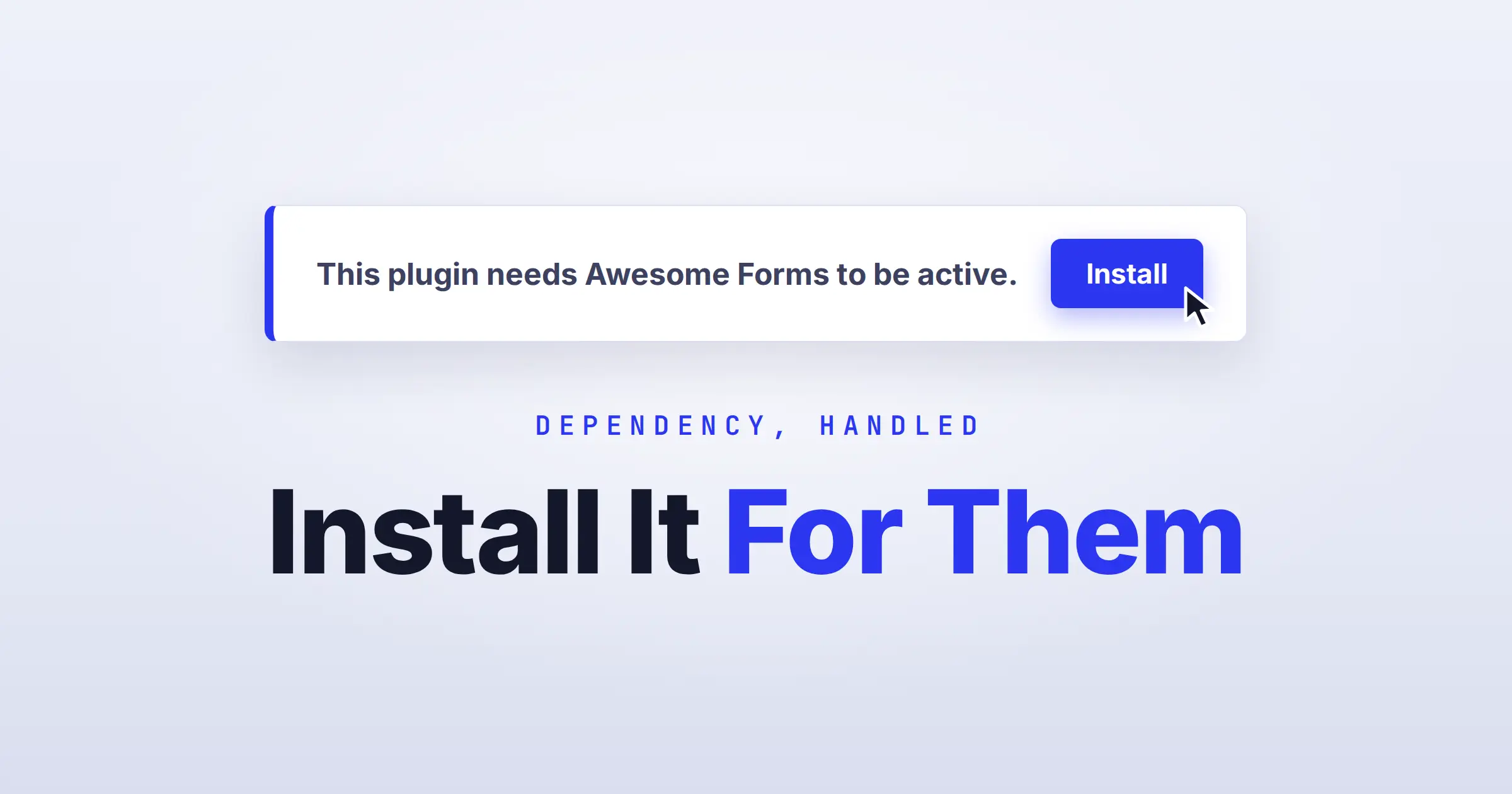
You shipped a plugin that needs another plugin to work. Maybe it’s a Pro add-on that sits on top of your free version, or an integration that needs the base plugin present. So you do the responsible thing and show a notice when the dependency is missing:
This plugin requires Awesome Forms to be installed and active.
And then you stop there. The user reads it, opens a new tab, goes to Plugins → Add New, types the name, installs it, comes back, and activates. Five steps to fix something you already know how to fix for them.
WordPress has had the tools to install a plugin from inside the admin for years. It’s the same button you see on the “Add Plugins” screen, and you can drop it straight into your own notice. Here’s how.
First, tell “missing” apart from “just switched off”
There are two reasons your dependency isn’t active, and they need different buttons:
- The plugin isn’t installed at all, so you want an Install button.
- The plugin is installed but deactivated, so you want an Activate button.
Telling them apart is one function call:
function my_core_is_installed() {
    if ( ! function_exists( 'get_plugins' ) ) {
        require_once ABSPATH . 'wp-admin/includes/plugin.php';
    }

    // folder/main-file, for example awesome-forms/awesome-forms.php
    return array_key_exists( 'awesome-forms/awesome-forms.php', get_plugins() );
}
The notice, with a button that actually works
The trick to keeping this reliable is to make the button a normal WordPress link. WordPress has a built-in URL that installs a single plugin, and another that activates one. Both are plain links, both work on any admin page, and both are protected by a nonce.
add_action( 'admin_notices', 'my_core_dependency_notice' );

function my_core_dependency_notice() {
    // Don't nag people who can't act on it.
    if ( ! current_user_can( 'activate_plugins' ) ) {
        return;
    }

    // Only show this while the dependency really is missing.
    if ( class_exists( 'Awesome_Forms' ) ) {
        return;
    }

    $slug      = 'awesome-forms';
    $basename  = 'awesome-forms/awesome-forms.php';
    $installed = my_core_is_installed();

    echo '<div class="notice notice-error"><p>';
    echo esc_html__( 'This plugin needs Awesome Forms to be active.', 'my-plugin' );

    if ( ! $installed && current_user_can( 'install_plugins' ) ) {
        $url = wp_nonce_url(
            self_admin_url( 'update.php?action=install-plugin&plugin=' . $slug ),
            'install-plugin_' . $slug
        );
        printf(
            ' <a href="%s" class="button button-primary my-install-core" data-slug="%s">%s</a>',
            esc_url( $url ),
            esc_attr( $slug ),
            esc_html__( 'Install Awesome Forms', 'my-plugin' )
        );
    } elseif ( $installed && current_user_can( 'activate_plugins' ) ) {
        $url = wp_nonce_url(
            self_admin_url( 'plugins.php?action=activate&plugin=' . $basename ),
            'activate-plugin_' . $basename
        );
        printf(
            ' <a href="%s" class="button button-primary">%s</a>',
            esc_url( $url ),
            esc_html__( 'Activate Awesome Forms', 'my-plugin' )
        );
    }

    echo '</p></div>';
}
Stop right here and you’re already ahead of most plugins. The Install button sends the user to WordPress’s own install screen, which downloads the plugin and shows an Activate link when it finishes. The Activate button flips it on in a single click. No searching, no typing.
Make it one click instead of two
That install link still loads a separate page. On the Plugins screen you can do better and install the plugin without leaving the page, exactly like the “Add Plugins” grid does. WordPress ships the script for it, called updates. You enqueue it and call wp.updates.installPlugin().
The reason this works cleanly on the Plugins screen and nowhere else is that WordPress only prints the “enter your connection details” fallback box on that screen. So enqueue there, and let the plain link handle every other page.
add_action( 'admin_enqueue_scripts', 'my_core_installer_assets' );

function my_core_installer_assets( $hook ) {
    if ( 'plugins.php' !== $hook ) {
        return;
    }

    if ( ! current_user_can( 'install_plugins' ) || my_core_is_installed() ) {
        return;
    }

    wp_enqueue_script( 'updates' );

    $js = <<<'JS'
jQuery(function($){
  $(document).on('click', '.my-install-core', function(e){
    if ( ! window.wp || ! wp.updates ) { return; } // fall back to the link
    e.preventDefault();

    var $btn = $(this);
    $btn.prop('disabled', true).text('Installing...');

    wp.updates.installPlugin({
      slug: $btn.data('slug'),
      success: function(res){
        $btn.text('Activating...');
        if ( res.activateUrl ) { window.location = res.activateUrl; }
      },
      error: function(res){
        $btn.prop('disabled', false).text('Try again');
      }
    });
  });
});
JS;

    wp_add_inline_script( 'updates', $js );
}
Now the flow reads like this: click Install, watch the button say Installing, then Activating, then the page reloads with your dependency live.
A few things that will save you a support ticket
- Check the capability, not just the login.
install_pluginsandactivate_pluginsare different, and on multisite a regular site admin has neither. Show the plain message to people who can’t act, and drop the button. - Keep the nonce. Those install and activate URLs are useless and unsafe without the matching nonce, so build them with
wp_nonce_urland let WordPress verify. - Don’t load the script everywhere. Your notice can show on every admin page, but the installer only needs to run on the Plugins screen. Enqueue it there and let the link cover the rest, so the broken state stays cheap.
- One-click install needs a WordPress.org plugin.
installPluginpulls from the .org directory, so if your dependency lives on GitHub or your own site, you’re limited to the Activate button and a link for the install.
That’s the whole thing. The notice you were already showing now does the job instead of just describing it.